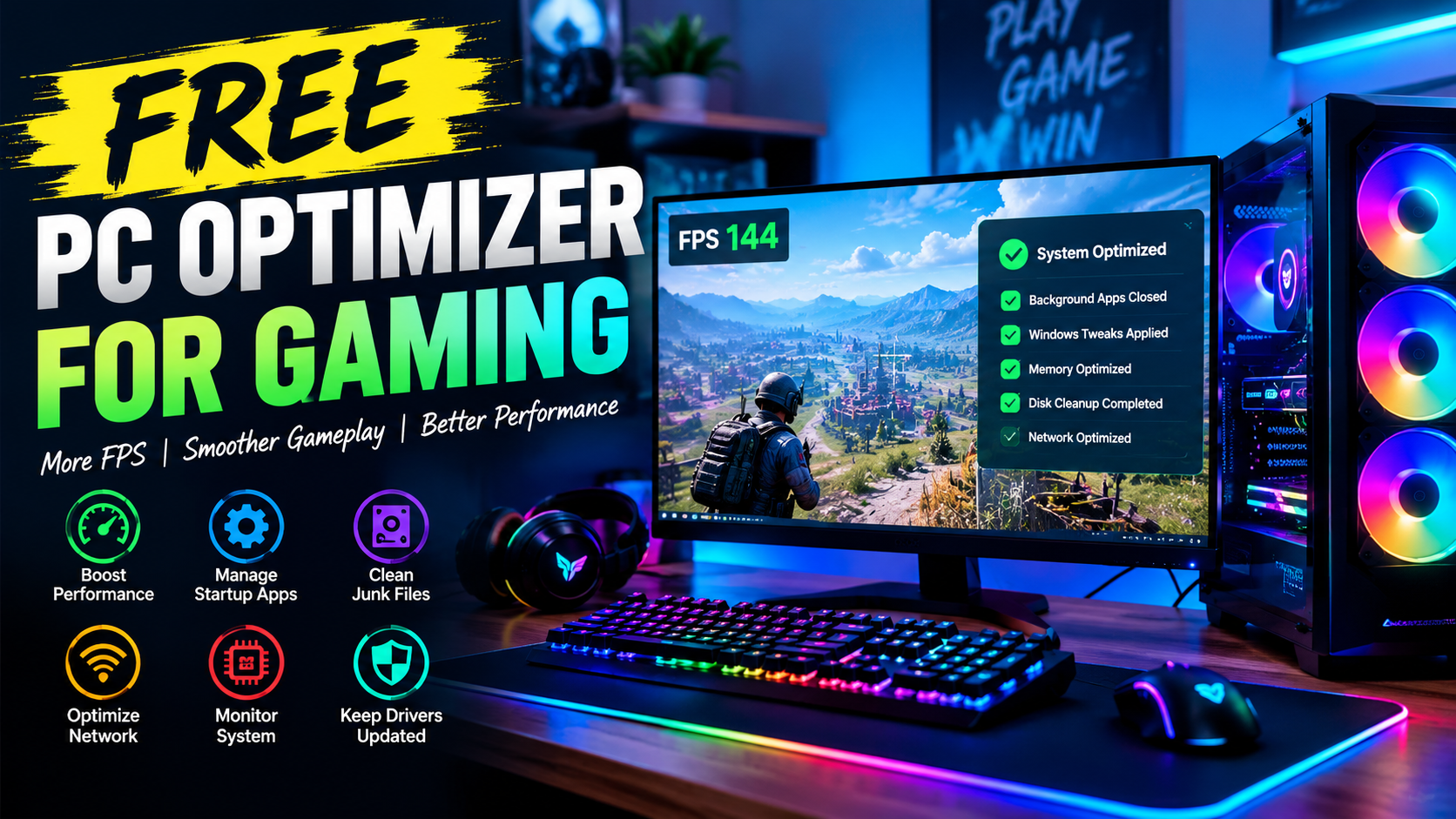
Modern PC games can demand a lot from your computer. High-resolution graphics, large game worlds, advanced physics, and competitive multiplayer features can put significant pressure on your CPU, GPU, RAM, storage, and network connection. Even a reasonably powerful gaming PC may experience frame drops, slow loading, background processes, or inconsistent performance when Windows is not properly optimized.
This is where a free PC optimizer for gaming can be useful. Instead of immediately upgrading expensive hardware, gamers can use optimization tools to adjust certain Windows settings, manage unnecessary processes, and improve the way their system handles gaming workloads.
Why PC Optimization Matters for Gaming
Gaming performance is influenced by much more than the graphics card. Your operating system, background applications, storage condition, memory usage, and power settings can all affect how smoothly a game runs.
For example, applications running in the background may consume CPU and RAM resources while you are playing. Automatic updates, unnecessary startup programs, browser tabs, and other processes can compete with your game for system resources.
Optimization focuses on reducing unnecessary activity and helping your PC dedicate more resources to the tasks that matter.
A properly optimized system may provide a smoother gaming experience, particularly on PCs that have limited hardware resources.
What Is a Free PC Optimizer for Gaming?
A free PC optimizer for gaming is software designed to provide tools or settings that can help improve a computer’s performance for gaming. Depending on the software, optimization features may include Windows tweaks, startup management, background process control, network optimization, storage maintenance, and performance monitoring.
Not every optimizer works in the same way. Some applications provide simple one-click optimization, while others allow users to manually control individual settings.
For gamers, the most useful tools are usually those that help reduce unnecessary system activity without making aggressive changes that could cause stability problems.
Reduce Unnecessary Background Processes
One of the simplest ways to improve gaming performance is to control unnecessary background applications.
When Windows starts, numerous programs may launch automatically. Some are useful, but others may not be needed while gaming. These applications can consume memory and processor resources.
A good optimization utility can help users identify applications that are consuming system resources. Closing unnecessary programs before launching a demanding game can potentially provide additional resources for the game itself.
However, users should avoid disabling essential Windows services or security software unless they understand exactly what those services do.
Improve Windows Gaming Performance
Windows includes several settings that can affect gaming performance. Power management, visual effects, startup behavior, and other system configurations can influence how a computer behaves under load.
A PC optimizer can make these settings easier to find and manage.
For example, users may choose performance-focused power settings when running demanding games. Reducing unnecessary visual effects can also help older systems conserve resources.
The goal should not be to disable everything. Instead, gamers should identify settings that provide a practical performance benefit without reducing system usability.
Keep Your Storage in Good Condition
Storage performance also matters for gaming. Modern games can occupy hundreds of gigabytes, and slow or heavily loaded drives can contribute to longer loading times.
Regular storage maintenance can help keep a PC organized. Removing unnecessary temporary files and monitoring available disk space can prevent storage from becoming unnecessarily full.
For traditional hard drives, defragmentation may be useful in appropriate circumstances. SSDs use different maintenance processes, such as TRIM, and should not be treated like traditional hard disk drives.
A good free PC optimizer for gaming may provide separate maintenance options depending on the type of storage installed in the computer.
Monitor FPS and System Performance
Optimization becomes much more useful when gamers can measure the results.
An FPS counter can show how many frames a game is rendering per second. Monitoring FPS before and after making changes can help users determine whether an optimization actually made a difference.
Other useful information includes CPU usage, GPU usage, RAM consumption, temperature, and network performance.
Performance monitoring also helps identify bottlenecks. If GPU usage is consistently near maximum while CPU usage remains relatively low, the graphics card may be the primary limitation. On the other hand, high CPU usage can indicate a processor-related bottleneck.
Network Optimization for Online Games
Gaming performance is not only about FPS. Online games also depend heavily on network quality.
High latency, unstable connections, packet loss, and DNS-related issues can affect multiplayer experiences. While an optimizer cannot magically turn a slow internet connection into a fast one, network diagnostic and configuration tools can help users identify potential problems.
Running a speed test and checking latency can provide useful information about the connection. Gamers can then determine whether an issue is related to their PC, local network, or internet service.
Keep Drivers Updated
Graphics drivers are particularly important for gaming. GPU manufacturers regularly release driver updates that may include bug fixes, compatibility improvements, and optimizations for newer games.
Keeping drivers updated can therefore be an important part of maintaining a gaming PC.
However, users should obtain drivers from reliable sources and avoid installing questionable third-party driver packages. A trustworthy utility should make it clear where driver updates come from and what changes are being made.
Avoid Aggressive Optimization
Not every performance tweak found online is safe or useful.
Some websites recommend disabling Windows services, changing registry settings, or applying extreme system modifications. These changes may sometimes produce a small performance difference, but they can also create instability or unexpected problems.
A better approach is to make changes gradually and test the system after each major adjustment.
Before making significant changes, creating a restore point or backup can also provide an easy way to recover if something goes wrong.
Hardware Still Matters
Software optimization cannot completely replace good hardware.
If a game requires a powerful graphics card, an optimizer cannot transform an entry-level GPU into a high-end model. Similarly, insufficient RAM or an aging processor may continue to limit performance even after Windows has been optimized.
Optimization should therefore be viewed as a way to get the most practical performance from existing hardware rather than a replacement for hardware upgrades.
Choosing the Right Gaming Optimizer
When choosing a free PC optimizer for gaming, users should look for useful and transparent features rather than exaggerated performance claims.
A good tool should clearly explain what each optimization does. It should also provide options to undo changes when possible.
Features such as performance monitoring, startup management, storage maintenance, network diagnostics, and Windows optimization can make a utility more useful for everyday gaming.
Users should also check whether the software supports their version of Windows and whether it receives regular updates.
Final Thoughts
A well-maintained PC can provide a smoother and more consistent gaming experience. By reducing unnecessary background activity, maintaining storage, monitoring performance, keeping drivers updated, and reviewing relevant Windows settings, gamers can often make better use of their existing hardware.
A free PC optimizer for gaming can bring many of these functions together in one convenient application. The key is to use optimization tools carefully and focus on measurable improvements rather than unrealistic promises.
For gamers who want to improve their PC experience without immediately spending money on new hardware, responsible software optimization can be a practical place to start.